“Make me a newspaper” — publishing a web page straight from a chat
What it actually looks like to ask an assistant for a web page, get a live URL on your own domain seconds later, then change your mind and have the same link update in place.
Here is the whole job, as it actually happened.
Create a sample link of a webpage that looks like a newspaper and publish it to slim.to with the slug of news. Use the domain share.kumkuat.ai
Twenty seconds later there was a URL. Not a file to download, not a preview pane, not a code block to copy — a live page on a real domain that anyone could open:
share.kumkuat.ai/news
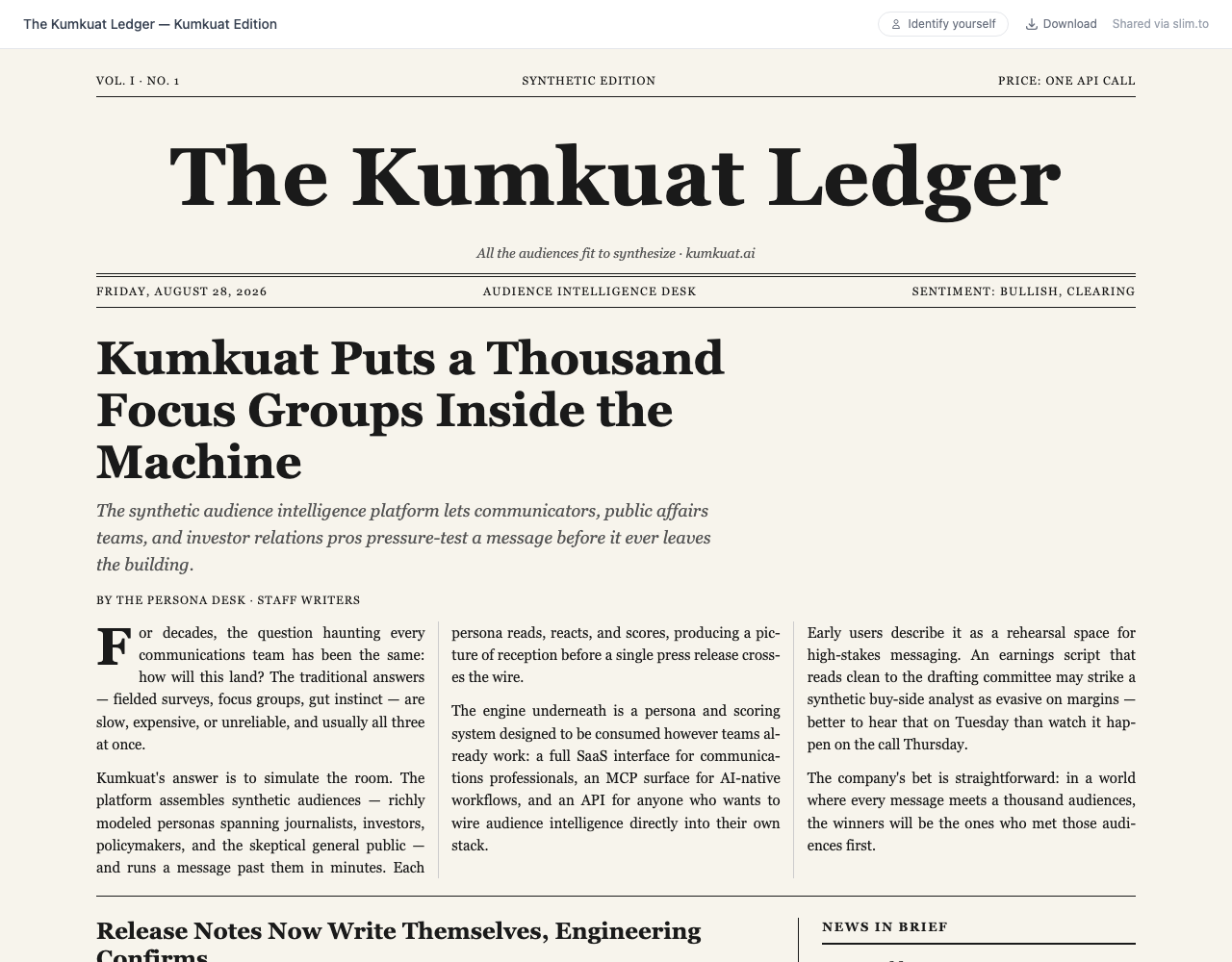
No dashboard was opened. No file was downloaded and re-uploaded. The assistant wrote the HTML and published it in the same breath, because slim.to was connected to it as a tool.
Then the inevitable happened
Looking at it, the obvious next thought:
Let's update the file to make it all news about Kumkuat
This is the moment that usually costs you. In the ordinary version of this story you regenerate the file, upload it again, get a new URL, and now you have two links — one of which you've already sent to somebody.
Instead:
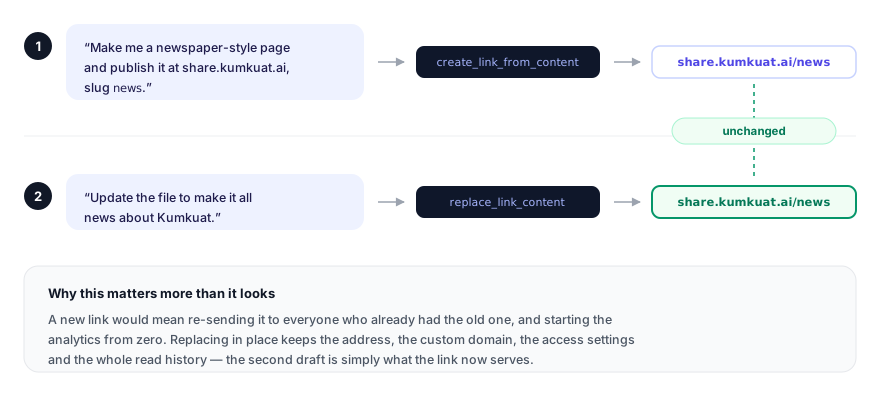
replace_link_content swaps what the link serves. The URL, the domain, the access settings and the read history all survive.Same link. New paper. Anyone already holding share.kumkuat.ai/news now sees
the rewritten version, and the analytics didn't reset.
That's the part worth internalising, and it's the habit most people take longest to build. Publishing is cheap; re-publishing is what quietly ruins a shared link. One address that always has the current version beats five addresses and a guess about which one someone read.
What you're actually getting
It's easy to read this as "the assistant can make web pages", which undersells it. The page is a slim.to link, so it arrives with everything a link has:
- It's on your domain.
share.kumkuat.ai, not a shortener nobody recognises. Set up once in Dashboard → Domains, then it's just an argument the assistant can pass. - It's tracked. Every open is logged — who, when, from where, on what. For a hosted page you also get scroll depth and time on page, so you know whether anyone read past the masthead.
- It's revocable. Password, expiry, view cap, email gate — all of it available on a link that's already out there.
- It's editable in place, as above.
The newspaper is a toy. The mechanism isn't. Swap "newspaper" for release notes, a status page, a client one-pager, a conference agenda, an internal FAQ — the flow is identical, and it's about four seconds of typing.
The bit that surprised me
One small thing from this run, worth knowing before it puzzles you.
replace_link_content swaps the file. It does not rename the link. So after
the rewrite, the page's masthead said one thing while the link's display title
in the dashboard still said what it was called on day one — which is also what
shows in the viewer bar and in link previews.
Not a bug; it's the same reasoning that makes replace safe. The tool changes what it says on the tin, not the tin. If the title matters — and it does the moment someone pastes the link into Slack and an unfurl appears — update it in the link's config page, or ask for it explicitly:
"Also rename the link to The Kumkuat Ledger."
Setting this up yourself
Two minutes, one time:
- Add the slim.to connector to your assistant. On claude.ai that's
Settings → Connectors → Add custom connector, then the URL
https://slim.to/mcp, then Authorize. - Add your domain in Dashboard → Domains and point a CNAME at us. TLS is automatic.
After that, "publish this at x" is a complete instruction. The full setup, including the desktop and CLI route for assistants that can read your local files, is in the MCP walkthrough.
Where to go next
Keep reading
-
Turn what your AI assistant just wrote into a tracked link on your own domain
Connect slim.to to Claude, ChatGPT or Gemini over MCP, publish the document your...
-
One prompt, six landing pages — and a way to tell which one is working
We asked Claude for a landing page per audience — sales, fundraising, design, PR,...
-
Client work, on your own domain
How a small agency ships every deliverable as a branded link that updates in place —...